
NoLimits 2 Tutorial (Basic Wooden Coaster)
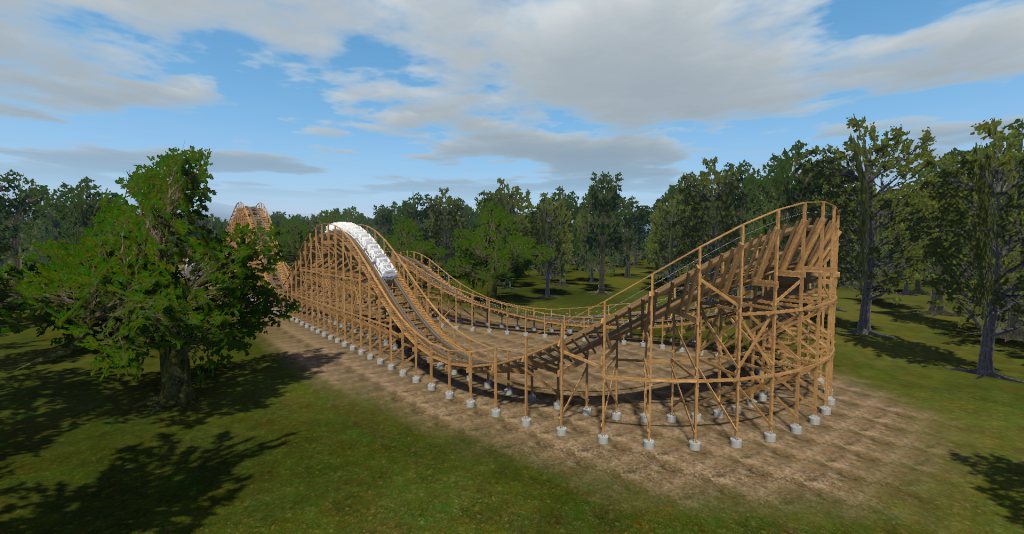
In this tutorial park, we will show you how to create a basic wooden coaster and using the scenery and terrain tools. Creating a coaster may feel hard but its really simple once you get deeper in this tutorial.
To start a coaster, click on the coaster tabe above and click "New Coaster", now you name your coaster. Once thats done, you click on "Coaster Properties. This setting will allow you to set number of trains, color, scripts and your coaster style for your coaster. Once you went through that, its time to make your coaster. Click on the Track button above to start building.
To start a track, click on "Start Vertex". To build or continue more track, Click on Add Vertex.
You can set rolls to bank your track like turns and inversions.
To add a track type, you must have sections of tracks. To do that, click on "Add Type Separator" and place two of them in your track. Now that you have sections of track, you can now place your track type. To do that, click on "Section Type" and select your track type.
There are 5 5ypes of coaster blocks.
- Transport
- Brake
- Lift
- Station
- Storage
There's no storage track on this wooden coaster since there's only one train running.
Once you made your layout, its time for some supporting and caltwalks. To do that, if you are making a steel coaster, click on the Supports button above and click on "Add Prefab". Now you can select your supports and place them in your tracks. If you are building a wooden coaster, click the Supports button below just like how we did with a steel coaster but instead, click on "Wooden Generator" and you can see all 4 wooden types (Simple, Vertical, Angle, and Stair-Step). Click on "Generate Final" and choose your wooden supports. Click ok and your done.
If you are building a steel coaster, to build some catwalks, click on the section track and select your catwalks (Left, Right, Or both).
Scenery: To add some scenery, click on the Scenery tabe above and choose your scenery.
Paths: To add some paths, click on the Paths tabe below and choose your texture and design your paths.
Terrain: To add hills and paint textures, click on the Terrain tabe above and do your terrain thing.
(1.) Paint: To add paint, click on "+" and name your terrain paint. Once that, you can change some settings of it of just click on "Paint Layer" to place your paint in your terrain.
(2.) Hills: To add some hills, click on Modify Height" and rise your terrain bu dragging it up. You can also click on "Modify Markers" and create saved vertices of terrain and rise them up or down.
(3.) Pond: To create ponds, just drag your terrain down instead of up.
(4.): Textures On Grass: Just click on the grass texture and click on "Extras" and choose "Auto Plants". That way, you can make real grass instead of a flat green texture.
Thats all the steps to master No Limits 2 guys! I hope this tutorial helped and made you get better. Remember the more you make coasters, the more good you will get by using all the tools.
Enjoy!
WoodenCoaster
1.9 meters
15.8 meters
426.6 meters
Wooden Classic 4-seat